Blogging
Have You Benefited From This Blog?
posted by Andrea | 05/19/2012 | 30 comments
Two years ago (May 2010) I got the “crazy” idea to start a blog about simple organized living. I knew that I had PLENTY to say, but I had no idea if anyone besides Dave and my mom would read what I wrote.
However I made up my mind… and after about 4 months of hashing out design details, adding content, and uploading images, SimpleOrganizedLiving.com was born in September of 2010.
At the time, my main motivation behind this blog was to provide an online resource for my organizing clients, coaching clients, and all the women who came to my workshops and speaking engagements.
This blog was supposed to be a TOOL FOR MY BUSINESS… but it ended up BECOMING MY BUSINESS!
I now work full-time on my blog and as a virtual assistant for a few other blogs.

I’ve had the privilege of sharing my life with you and getting to know many of you on a very personal level… some even “in real life”! I’ve enjoyed sharing hundreds of tips, ideas, photos, recipes, printables, giveaways, and so much more.
I feel blessed to do something I love… but even more blessed to know that there people (besides Dave and my mom) who actually read my blog on a daily basis, implement my ideas, and are committed to creating a simple, more organized life!
Can you believe that over 2 MILLION people have visited Simple Organized Living!
Yeah, Nora is really excited about that too

To date, I’ve been able to offer every bit of information completely FREE… and I plan to continue doing so, thanks to my amazing sponsors and advertisers.
Free is good… right!
However, over the past several months, I’ve received quite a few emails from loyal readers asking if there was any way they could donate a small amount of money to show their appreciation for the tips, ideas, and advice they’ve gleaned from SimpleOrganizedLiving.com. Some were so persistent that they actually mailed me gift cards or sent money to my personal PayPal account!
Thank you, THANK YOU!
.
So, as Simple Organized Living continues to grow, and as I continue to incur more and more expenses, I’ve decided to set up a ”Show Your Support” page for anyone interested in supporting SimpleOrganizedLiving.com (via monetary donation, advertising, promotional opportunities, or even just a kind note of encouragement).
This is by no means a “request” for donations, but rather a place for anyone who is interested to show their support. If you’ve benefited from my blog in any way, please click over to my new Show Your Support page to discover all the many ways you can help to support me (most of which won’t cost you a penny).
At the very least, I’d love for you to leave a comment with one tip, idea, recipe, project, etc. that has helped you to simplify and organize your life. And of course, you may feel free to leave any suggestions for future blog posts too
Thanks so much for your continued support!
.

Filed under: Blogging • Business 101 • Working From Home
How I Organize My Weekly Blog Posts
posted by Andrea | 05/16/2012 | 24 comments
I write anywhere from 7-14 posts each week — both for my own blog and as a contributor for several other blogs… so I definitely need to have a “plan” in place to assure that I don’t duplicate topics, miss deadlines, or run out of things to say {although, I think Dave would tell you that’s impossible!}
And since a few of you have recently asked how I set up, organize, and manage all the posts I write on a weekly and monthly basis, I figured maybe I should share “my plan” with you!
As with most things in my life, I try to keep it as simple as possible… mainly because I have way too many things to do each week and I can’t afford to spend lots of time “planning” as opposed to “doing”
Here are the few basic steps I follow on a weekly and monthly basis:
1. I write down ANY new ideas.
.
This is probably the most important thing I do… and I do it constantly. I always have a note pad and pen with me — I even keep one by my bed because I seem to get really good ideas in the middle of the night! Then ANY time I think of an idea that could possibly work with my blog, I write it down immediately. Once I’m back at my desk, I have a “master list” of blog post ideas for the different categories I write about.
I find that with most bloggers, the biggest challenge can sometimes be coming up with an idea to write about. I used to have bad writers-block and would sometimes be up at 11:30 the night before, trying to pull a clever idea out of my brain and then write a post about it before the next morning. Now that I have a baby… I most definitely have better things to do at 11:30pm (like sleep!)
By having my list of ideas available all the time, I rarely ever waste time wondering what to write about.
2. I take pictures of everything.
.
Now that I have an iPhone (that I take with me everywhere), I have no excuse NOT to take photos of every aspect of my life. I do end up deleting many of the photos, but I like to have as many pictures as I possibly can because that makes my blogging life SO much easier.
I can almost always find a picture that relates to any post I’m writing, and I can quickly document my recipes and craft projects because the pictures are always available.
I’m definitely not a fantastic photographer — but that’s what my favorite photo editing programs are for… right!
3. I draft one week of posts in one morning.
.
Every Tuesday morning, I take about 1 hour to draft any posts I need to write for the following week. I look over my “master list” of ideas and pull topics and ideas that are relevant to the season, date, and my current life situation.
When I draft my posts, I basically just type in a title and then “brain dump” any information about that topic or idea without worrying about formatting, spelling, grammar… or even making sense. I just type anything and everything that comes to mind.
I also make notes about any photos I will need to take or any other actions that might be necessary before I can finish writing the post {like make a recipe, finish a craft project, etc.}
Not only does this “draft” process help initiate my writing process (see below) it also reminds me to think about these topics and ideas throughout the week.
4. I write a full weeks worth of posts in one day.
.
I find that I’m most productive if I can get in a groove and do the same thing over and over again. So taking one morning and afternoon to write out all of my posts for the following week has always worked really, really well for me.
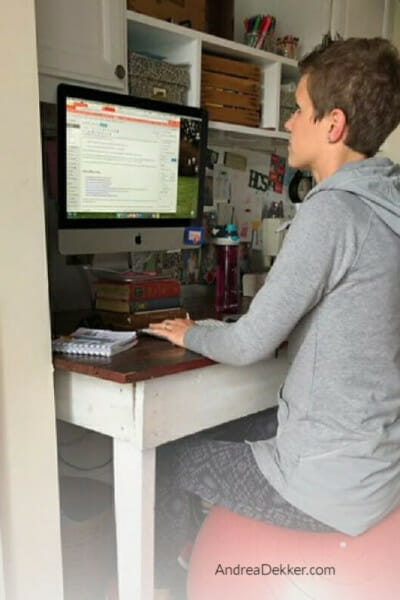
After Nora was born, she wreaked havoc on this system {and my productivity} so I’ve started paying a college girl to come in on Fridays to watch Nora while I go head out to our outbuilding and write. {She also cleans my house so it’s really a fantastic situation for me!}
I basically write, roughly edit, add all the images, links, tags, categories, etc. My goal by the dinner on Friday is to have all my posts scheduled for the entire week ahead… and then I close up shop for the rest of the day.
I do use templates to quickly draft posts like my recipes and Weekend Giveaways. The templates allow me to recreate a new post in about 5 seconds… and then all I have to do is input the new content and a few new images. SO much faster than writing those posts from scratch every week.
And I’m sure I don’t need to tell you how good it feels to walk into a clean house and know that I’ve literally accomplished a weeks worth of work in one day. Yup, it’s worth every penny I pay Nora’s buddy
5. I get Dave to proof-read my posts.
.
Before Nora was born, I had much more time to proof read and edit my posts. And I know I didn’t catch everything (by nature, I’m a very poor speller) but it was good enough.
However, after Nora joined our family, my blogging time was limited, and I found that I was making more mistakes and wasn’t paying close enough attention to the details.
So Dave graciously offered to start proof reading my posts every Saturday afternoon {even though he has a million other things he could be doing}. And while I know there have still been times when he misses something, this system is better than nothing, and I really appreciate having another set of eyes read over my posts before they go live.
Plus, knowing that he’s ready and waiting to proof-read on Saturday makes it even more important for me to finish writing my posts on Friday.
This system has been working for me for quite some time now… so I’m sticking to it!
I can’t even remember the last time I was up late writing a post for the very next day, and I certainly never sit around trying to think of ideas anymore. Not only do I save so much time by drafting and writing all my posts in one big batch, I also save loads of last-minute stress.
If you’re a blogger, I’d love to know how you set up your writing schedule.
.
Filed under: Blogging • Time Management • Working From Home
Guest Posts Worth Reading
posted by Andrea | 05/12/2012 | 2 commentsEach month, I write several guest posts for different blogs — here are some of my favorites from this month.

How to Organize Children’s Clothing
.
Over the past several years, I’ve helped many moms (and dads) get and stay more organized… and one of the most common clutter issues I’ve helped them with is dealing with all their baby and kid’s clothes.
Baby and kid’s clothes fall under the “sentimental and emotional” clutter realm because they are just SO cute and every outfit has a story! Plus, they out-grow their clothes so quickly that they usually still look brand new.
I have a pretty good organizing system in place for Nora’s closet… but if you’ve ever felt overwhelmed with all your kid’s clothes and accessories, here are a few tips to help you sort, store, and organize all those baby and kid’s clothes.

The Power of a Physical Inbox
.
I’m a very visual person — I like making lists, I still use a paper planner, I love writing out my to-do’s each day, and I’ve almost always had a physical inbox sitting on my desk.
Yes, I have an email Inbox too — but I need my wicker basket sitting on my desk to SHOW me what I still have left to do in any given day or week.
If you’ve ever struggled with staying on top of everything you have to do, check out my tips for creating and using a physical inbox!

Simple Tips to “Green Up” your Office Space
.
I often feel overwhelmed with whole idea of “going green” — mainly because I don’t know where to start, and it always seems to take SO much extra effort. However, over that past few months, I have taken several very simple steps to reduce my waste and start my “green” journey in our home… and in my office.
If you’re interested in a few really simple ways to “green up” your office space, here are a few ideas to get you thinking…
Filed under: Blogging • Working From Home
Five Social Media Time Savers
posted by Andrea | 04/9/2012 | comment
Facebook, Twitter, Pinterest, Google+, Tumblr, LinkedIn, StumbleUpon, Instagram, Quora, Digg, YouTube, etc. etc. There are so many different social media venues… I find it impossible to keep up with them all!
While I think it’s absolutely essential for small businesses to utilize the massive {and totally free} advertising and promotional opportunities provided by social media, I’m also the first to admit that they can be a HUGE time-suck.
I could literally spend my entire day learning, doing, trying, promoting, and using these different social media applications… but I don’t.
The key for me is to do as much as I can in as little time as possible.
If you share my social-media philosophy, then head on over to the Turnstone blog to read my Five Social Media Time Savers.
What are your best social media time-saving tips??
Filed under: Blogging • Productivity • Time Management • Working From Home
How I Declutter My Inbox With Gmail Filters
posted by Andrea | 03/28/2012 | 12 comments
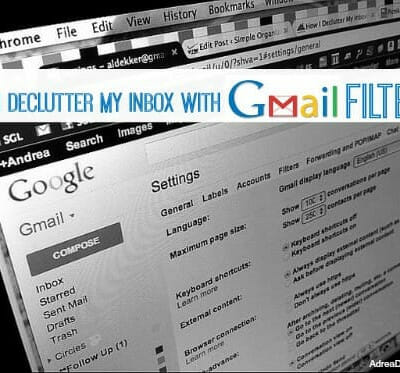
Due to my blog and all the different virtual assistant jobs I have, I currently have ten {yes TEN} different email addresses that all go to one Gmail Inbox! And even though I get upwards of 100 emails every day, my Inbox almost always has less than 5 emails when I “close up shop” for the night.
No, I don’t spend all day checking and responding to email… and no, I don’t just delete them without responding. Instead, I use filters to automatically file my incoming emails to the appropriate folders — this way, they don’t even show up in my Inbox and I can respond to emails in batches when I have time.
For example, I get email notifications any time someone comments on my blog — so instead of having those emails clutter up my Inbox all day long, I have them automatically forwarded {or filtered} to a separate folder. Then, at the end of the day, I can take a chunk of time to read through those comments and respond as necessary.
I also have a filter set up for each of my VA jobs — so whenever I get an email for a particular job, it goes directly to that folder and I can then handle all the emails at one time — saving me lots of time and keeping my Inbox clutter-free.
If you’ve never done it before, here’s how to set up a filter in Gmail:
STEP 1: Get to the “Filters” tab
.
Click on the “gear” in the top right corner of your Inbox, then click on settings. Finally, click on “Filters”.

STEP 2: Create Your First Filter
.
Once you click on the “Fliters” tab, you should see a link towards the bottom {center} of the window that says “Create a New Filter”. When you click on that link, the following form will pop up.

Fill out the information and then click “Create filter with this search”
STEP 3: Set Up Your Filter
.
After you “create your filter” another box will pop up with options for your newly created filter.
I ALWAYS click “Skip the Inbox” so I don’t ever have to look at the filtered emails until I’m ready.

Also, you’ll want to make sure to direct the filtered email to one of your previously created labels.
For example, I direct all the emails with my blog comments to a “Follow up” label. I direct all my VA job emails to specific labels created for each of those jobs/clients.
I also check the box “Never send it to Spam” because I don’t want to miss any of those emails.
Once you have the the filter set up how you want it {you can always edit it later} click the blue “Create Filter” button.
STEP 4: Use Your Filters
.
After you have your filters set up, you will no longer get those emails in your inbox — instead, they will go directly to the folders you specified in step 3 above.
However, you’ll easily be able to tell when you have unread messages in any of your folders by the bold number to the right of the folder.

Once you have a few unread emails in a specific folder, you can click on that folder and read, respond, file, delete as necessary.
STEP 5: Edit or Delete Filters
.
Once your filters are set up, you can easily change, edit, or delete them at any time via the Settings tab.

So that’s how you set up a filter in Gmail!
I know this might sound like a lot of hassle — especially at first. But if I had to guess, I’d say that my filters save me AT LEAST 1 hour every day because I don’t have to manually file these emails, I don’t have to look at them and scroll past them to find other emails, and I can deal with similar emails in “batches” instead of one at a time.
Plus, my Inbox is always clutter free — which psychologically makes me feel less stressed every time I check my email!
Do you use filters? Or do you have any other time-saving email tips?
.
Filed under: Blogging • Clutter Control • Productivity • Technology • Working From Home
My Thoughts on Working For Free
posted by Andrea | 03/1/2012 | 54 comments
I’ve been working for myself for almost 5 years now — and it definitely hasn’t always been easy, or even always enjoyable. There were many, many days when I wondered why I was working so hard for “nothing” — and I often thought about returning to the corporate world, just because working for myself was really overwhelming and stressful at times.
However, I’m so glad I stuck with it and fought through those difficult months {and years} of long hours and hardly any pay… because now I’m doing what I love, working from home, AND actually making money
Yes, I make money doing my job and I suspect that you also make money at your job — after all, that’s what a job is!

Should I Work For Free?
.
While I’m certainly NOT against volunteering, charitable giving, bartering, or offering free/discounted services when the opportunity presents itself; I often have to remind myself and others that this is MY JOB, and I can’t work for free!
You would never expect a plumber, electrician, web-designer, or accountant to work for free; so why should I be expected to work for free just because I’m a stay-at-home-mom who “sits at my computer all day”?
Maybe I have a more flexible work schedule than most traditional jobs, maybe my daily commute is shorter, and maybe my office dress code allows PJ’s until noon — but this is still my job. I’ve worked REALLY hard and have made tons of sacrifices to get where I am today. I have goals and dreams too — and I’m not going to reach them by always working for free!
Yet I’m always amazed at how many people expect me to work for free!

I frequently get emails with 3 or 4 images of someone’s room/closet, the dimensions of their space, and a novel-length message describing what their issues are and how they would like their space to function. The emails conclude by asking me to reply with a few design ideas, links to organizing products I would recommend, and any other advice I am willing to give them — all for free of course!
I get just as many requests asking me to donate my services for certain organizations, speak for different groups of people, write for other websites, and train people to become professional organizers… all out of the goodness of my heart. And while I am generally a pretty nice person, I just can’t do that all for free.
I’ve even been asked to put advertisements on my blog… for free! Maybe I’m wrong, but isn’t the whole concept of advertising to PAY someone else to promote your products? Yeah, I don’t do that for free either
In these situations, I usually just send a quick email explaining that although I would love to help them with their requests, I’m extremely busy and can’t always offer my services for free. I make sure to direct them to any blog posts that might be helpful for their situation… and I also provide links to my services and my advertising information.
Sometimes these people become clients, sometimes I never hear from them again, and sometimes they respond back saying how offended they are that I would ever think to charge them for my advice and my time!
After all, I’m JUST a stay-at-home-mom who sits at my computer all day long!

If you work from home, you know as well as I do that there are many pros AND cons of this type of work – especially once you throw kids into the mix!
And just like most jobs… it’s just not worth all the time and hassle to do it for free — at least not for me!

I suspect I’m not the only work-from-home-person who has run into these issues before!
And while I sometimes feel rude, money-hungry, or like I’m a horrible person when I explain that I can’t work for free; I just have to remind myself that this is my job!
I love getting a great deal as much as the next person, but I also feel like my services have value and shouldn’t just be “given away” for free — at least not all the time!
Finding Balance
.
Now before you leave thinking bad thoughts about me, let me reassure you that I definitely DO donate lots of my time, my services, and my money to people and organizations I have a personal connection with or causes I feel strongly about.
I also happily respond to tons of emails and comments each month with helpful information for readers looking to start up a blog, start an organizing business, or just with general questions {seriously, LOTS of emails!} I don’t mind doing this at all because I know how many questions I had when I first started my blog and my business… and I still go to other more experienced bloggers with my own questions.
I have no problem being helpful or providing information, I just don’t understand why some people expect me to give up hours and hours of my time for free — like I have nothing better to do.
Yes, I love my job… yes I love being helpful… but no, I can’t work for free!
What are your thoughts on working for free?
.
Filed under: Blogging • Business 101 • Working From Home
My Favorite WordPress Plugins
posted by Andrea | 02/20/2012 | 5 comments
One of my favorite things about using WordPress as my blogging platform is the ability to quickly and easily customize my site with the thousands of free plugins available.
In a matter of seconds I can search for a specific plugin, read about it, check the ratings, install it, activate it, etc. Then if I decide I don’t need it, want it, or like it anymore — it takes another 2 seconds to delete the plugin.
I do know some bloggers who have 40-60 different plugins installed… and while there are a lot of good plugins available these days, I would caution against that, simply because it will slow down your blog.
I usually have around 15 plugins activated at any given time, and I love them all… here’s why!
TIME SAVERS:
And The Winner Is — Since I run a Weekend Giveaway every Friday, I use this plugin to automatically pick the winner(s) every Monday. It saves me tons of time and assures that all the giveaways are done fairly
Article Templates — this plugin allows me to create templates for different blog posts. For example, I have a recipe template, a giveaway template, etc. So every time I post a recipe or giveaway, I just insert that template and fill in the new information. Yes, this saves lots of time!
Broken Link Checker — When I first installed this plugin, it found over 80 broken links — YIKES! I took an afternoon to fix them all… and now, any time I have a broken link, it alerts me on my WordPress dashboard and I can fix it ASAP.
This plugin saves me tons of time because I don’t have to constantly monitor and check all my links. It also give me peace of mind knowing that my links won’t bring readers to a dead-end page.
Lijit Search — This plugin creates the little search box at the top of my right side bar. I know this benefits readers who are trying to search for specific content on my site — but it also saves me a ton of time because I use it when I’m searching for a specific post, or need to remember what I wrote about something!
COMMENTS:
Akimet — This plugin protects my blog from lots of SPAM comments. It usually catches a few hundred SPAM comments each week — which means I don’t have to monitor my comments as closely.
Comment Reply Notification — I absolutely love this plugin — and I think many of my readers do to! Basically, this plugin allows me to respond to someone’s comment and makes my response visible to anyone who reads the blog… but it ALSO sends that person an email with my response.
So if someone asks me a question about a recipe or a DIY project, I can answer it “publicly” on the blog, but the person who asked the question will get an email with my reply. So convenient!
Facebook Comments for WordPress — This plugin actually connects my blog comments with reader’s Facebook walls. So any time someone leaves a comment via the Facebook comment box, it puts a link to my blog post directly on their Facebook wall — which then show up to their “friends” who can then click on over to my blog! Yay for more traffic!
I actually don’t have this plugin activated on my blog right now, simply because I was running into issues with my Weekend Giveaways. Too many people were leaving Facebook comments instead of WordPress comments, and then they wouldn’t be entered in the giveaway. But it’s still one of my favorite plugins!
Subscribe to Comments — This plugin is pretty self-explanatory… it simply allows readers to subscribe to the comments of any post on my blog. If they choose to “subscribe” they will then be notified of any additional comments on that same post.
So if it’s a topic you’re interested in learning more about, subscribe to the comment section and you’ll get a bunch more information from other readers!
WordPress Thread Comments — Since comments are the best way to communicate with others on my blog, I activated this plugin to allow readers to reply and respond to other comments on my blog. So instead of just leaving a comment way at the bottom of the comment list, you can respond to specific comment right below, just by clicking “reply”.
Also, if that person happened to subscribe to the comments, your “reply” will be emailed to them — which is really helpful when people leave questions and then other readers respond to their questions. It saves me a bunch of time and I love reading your advice!!
PROMOTION:
AdRotate — This plugin allows me to create ad blocks in my sidebar and fill them with different advertising campaigns. It also allows me to easily track statistics {like impressions and click-throughs} for the different advertisers. LOVE this one!
LinkWithin — This plugin puts thumbnail links to relative/related posts at the bottom of every single post I write. It helps to bring readers to other posts I’ve written in previous months, it increases my pageviews, and it increases the amount of time readers spend on my site — all of which are very good things! It also helps to provide readers with additional information about topics they are interested in.
Really Simple Share Buttons — I actually just installed this plugin last week… and am already a huge fan. I’ve been looking for a social media share button that includes Pinterest… and this is the one I liked the best. It’s really simple to set up and offers a good number of customizable options… so far, I’m loving it!
WordPress Popular Post — As the name suggests, this plugin automatically generates a list of the most popular posts on my blog {the ones with the most views}. It displays this list in my right sidebar… making those posts easily available to anyone who visits my site. It’s also nice for me to be able to see what posts my readers are reading and sharing.
So these are a handful of my most favorite WordPress plugins. There are hundreds of fabulous plugins out there… and I’m always searching for new ones, better one, etc.
What are your favorite plugins?
.
Filed under: Blogging • Working From Home